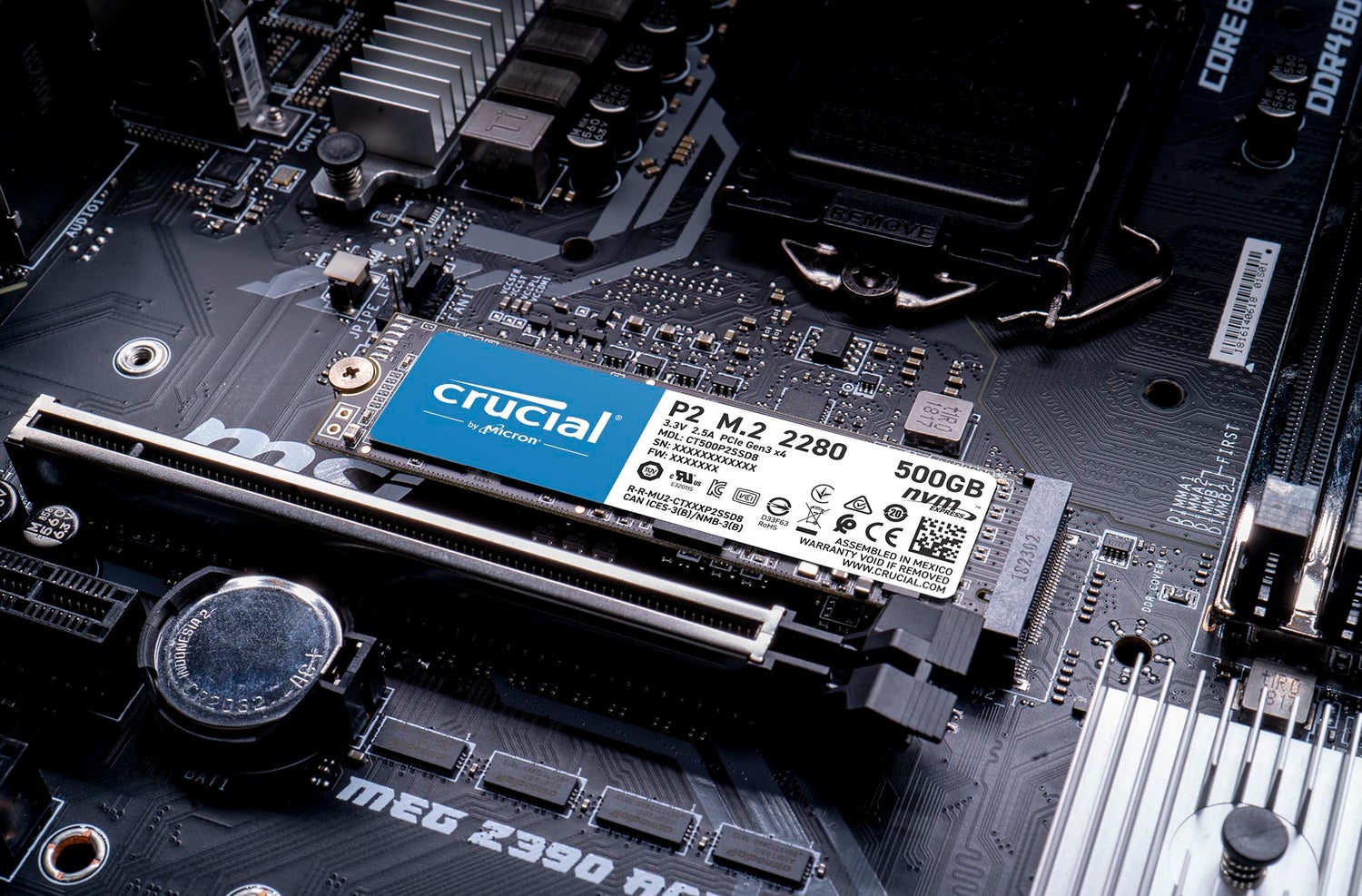
Crucial P2 SSD firmware update
Crucial offers two firmware upgrade options for the Crucial P2 SSD, depending on what firmware is currently on your SSD.
Crucial Storage Executive is the recommended upgrade method and will automatically detect the correct firmware version for your P2.
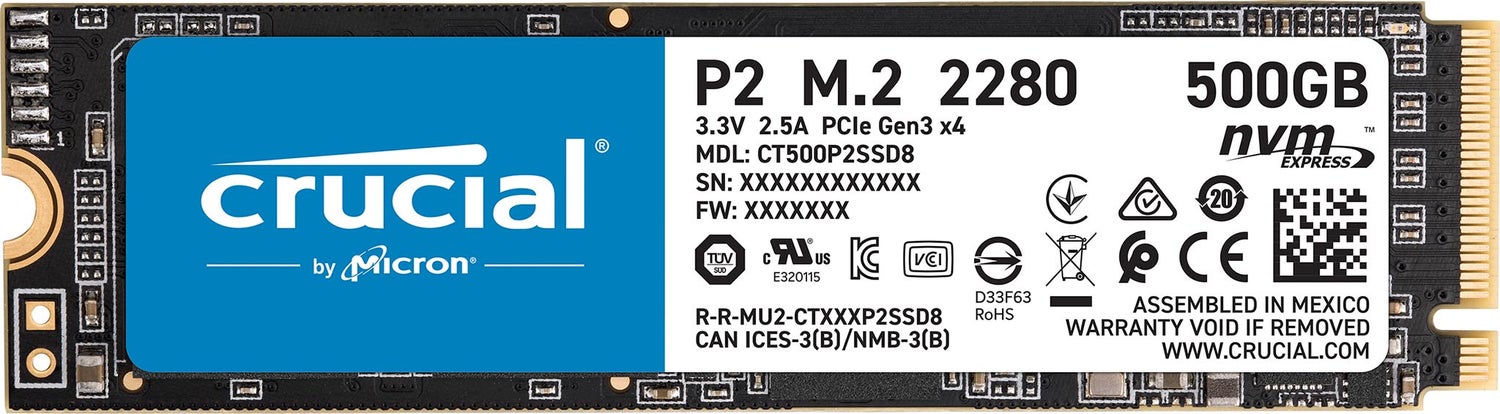
The firmware that was loaded on your SSD is listed on the product label. You can also find the firmware version through the Control panel (Windows) or About this Mac (Apple) information.
How to Find Your Firmware Revision for Windows?
How to Find Your Firmware Revision (Mac ?)
If your Crucial P2 SSD?currently has firmware P2CR010, you will?upgrade to?P2CR012.
If your Crucial P2 SSD?currently has firmware P2CR031, you will?upgrade to P2CR033.
Note:?The upgrade will safely abort if you attempt to install the wrong version for your SSD.
Bootable ISO Image for Version?P2CR012
?
Bootable ISO Image for Version?P2CR033
Warning:?Crucial recommends that you back up or make copies of all important files before installing this firmware update. This firmware updated is done entirely at your own risk. If performed correctly, there will be no loss of system or user data currently stored on the drive. However, if the firmware process is interrupted, your solid state drive might not function properly. If the firmware update is done on a notebook computer, Crucial recommends that the computer is plugged in to avoid interruption.
NVMe SSD driver for Windows OS
NVMe SSD Driver enables additional management and support features for Micron and Crucial SSDs in Windows Operating Systems.
The NVMe drivers included with Windows are sufficient for most desktop users. Installation of this optional driver is primarily useful for troubleshooting SSD performance, or for certain Storage Executive functions.

Optimization and update utility
Storage Executive optimizes and updates your Crucial SSDs on Microsoft Windows computers. Supported drives:?Crucial X10 Pro, X9 Pro, X9, X8, X6, P-series, T-series, T500, MX-series, BX-series, M550, and M500 SSDs
Storage Executive only available for 64-bit systems.
Installation and warranty
Our easy install guide
Follow our step by step guide to make installation easy:
Preparation
Physical installation of your SSD
Installation of Crucial Storage Executive
Cloning using Acronis
?